Single Sign-On (SSO) is a one-step user authentication process. If you are the admin of a Business, Team or Trial account, you can allow your sub accounts to access IDrive by signing in to a central identity provider.
With single sign-on (SSO), you can put the identity provider you already trust in charge of authentication, and your sub accounts can access IDrive without another password to manage.
How do I set up single sign-on (SSO) with IDrive?
If you have subscribed to the IDrive Business or Team plan as an admin, you can enable your sub-accounts to access IDrive by signing in to a central identity provider. To set up SSO with IDrive, you need to first configure your identity provider and then configure SSO in IDrive.
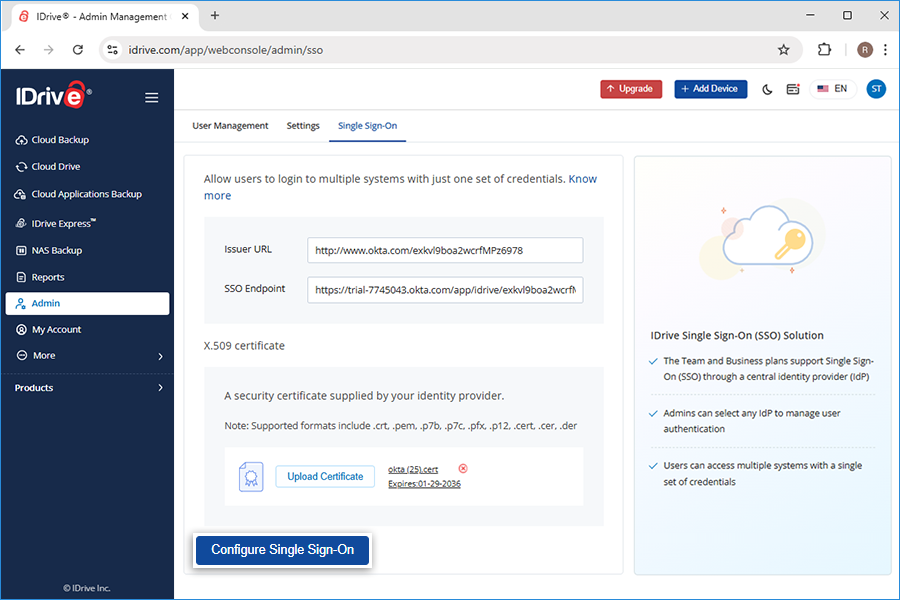
Enter the URLs and add the X.509 certificate received from your IdP. Note: Supported formats include .crt, .pem, .p7b, .p7c, .pfx, .p12, .cert, .cer, .der
Click Configure Single Sign-On.
How can I enable SSO for my sub-account users?
You can enable SSO while creating sub-accounts. Just ensure that the user credentials associated with the identity provider are mapped with your sub-account usernames in IDrive.
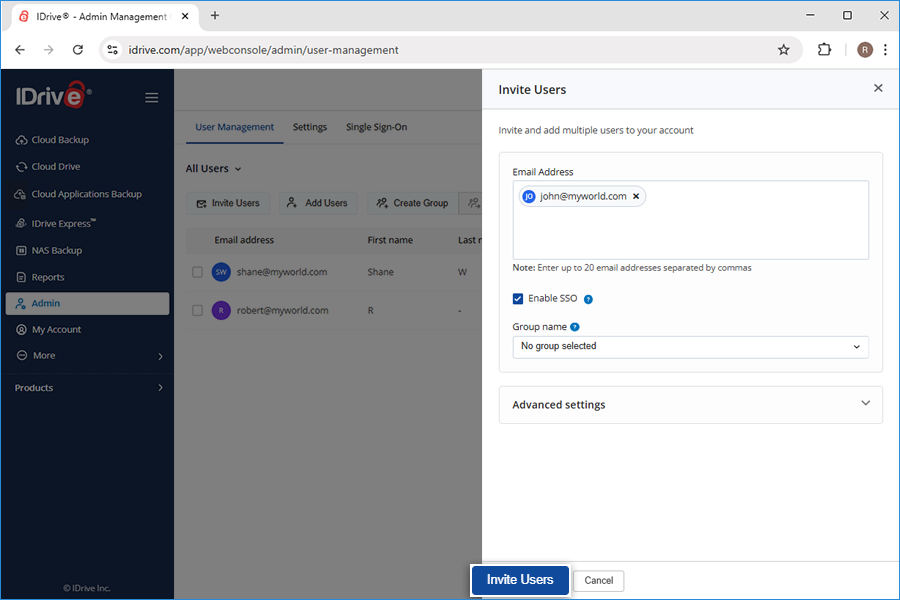
In the Invite Users screen enter email addresses, select a group name from existing ones or create a group.
Under Advanced Settings and tick the Enable SSO checkbox.
Click Invite Users.
Note: SSO enabled users cannot update the email address, reset or cancel their account.
Can I configure my own identity provider for SSO?
Yes, you can configure your own identity provider for SSO along with a set of parameters as described below:
IDrive uses SAML2 with the HTTP Redirect binding for IDrive to IdP and expects the HTTP Post binding for IdP to IDrive
While configuring with SAML, use the following two URLs and save the changes.
- Single sign on URL - https://www.idrive.com/sso/process
- Audience URL (SP Entity ID) - https://www.idrive.com/sso/metadata
Your identity provider may ask if you want to sign the SAML assertion, the SAML response, or both
If I disable SSO, can my users still access IDrive?
In case an admin disables single sign-on for a user, the admin will need to set a new password for that user. Once done, the user must sign in to the IDrive account with their username and new password, on all the relevant devices to continue with the backups.
How do I link my computers and mobile devices?
All computers and mobile devices that are currently linked to IDrive accounts will continue to work as normal. However, if users need to relink a device or link a new one, they'll need the latest versions* of the desktop application and mobile app in order for single sign-on to work. If they haven't signed in to your identity provider, they'll be automatically redirected to do.
*Note: SSO is supported for IDrive Windows application version 6.7.1.17 and higher / Mac application version 3.5.2.5 and higher / iOS app version 4.1.4 and higher / Android app version 4.1.15 and higher.
How do I sign in to my SSO enabled account from the IDrive desktop application?
Once the admin enables SSO for a sub-account user, they can use the IDrive desktop application to sign in.
To sign in via SSO,
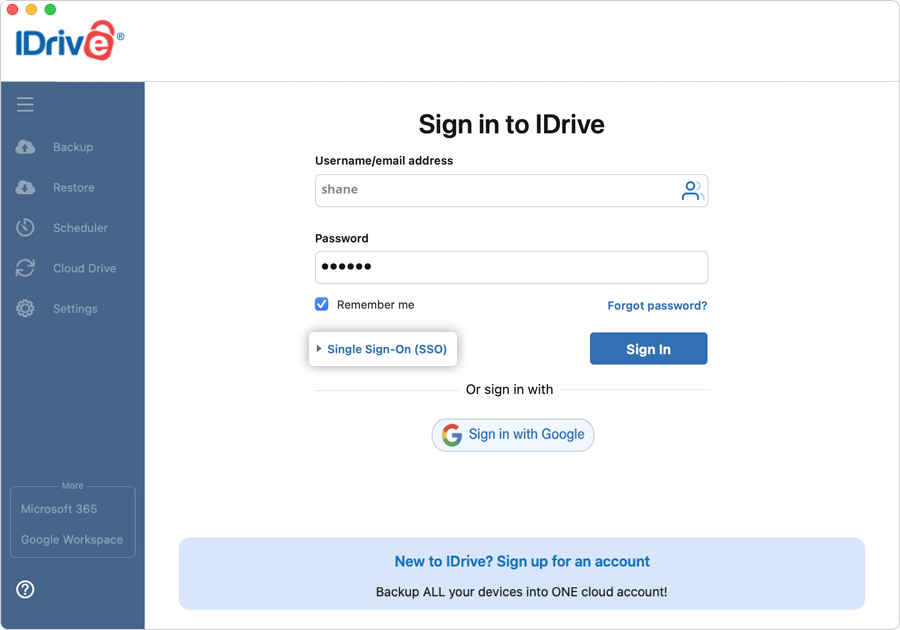
On the Sign in screen, click Single Sign-On (SSO).
Enter username/email and click Sign in. You will be redirected to IdP web sign in page.
Enter the username and password registered with IdP, when prompted to enter credentials.
Upon successful validation of user identity, you will be prompted to go back to the desktop application and you can now continue using your IDrive account.
To switch and sign in from another SSO-enabled account,
Logout from your SSO account.
Click against Username on the SSO sign in screen.
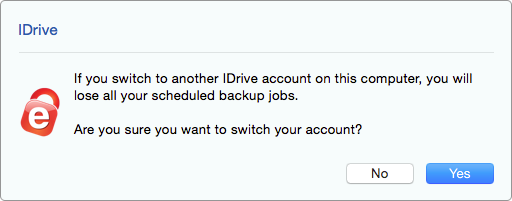
Click Yes in the confirmation popup to switch to another SSO account.
 against Username on the SSO sign in screen.